UI Properties
Element Properties
Select an element to edit its properties.
Select an element to edit its properties.
Are you sure you want to delete this element?
Text: Add text elements to your HUD layout. Configure font, size, color, and alignment in the properties panel.
Image: Add image elements. Upload images and position them on your layout.
No HUD: Remove the background image to work with a clean canvas.
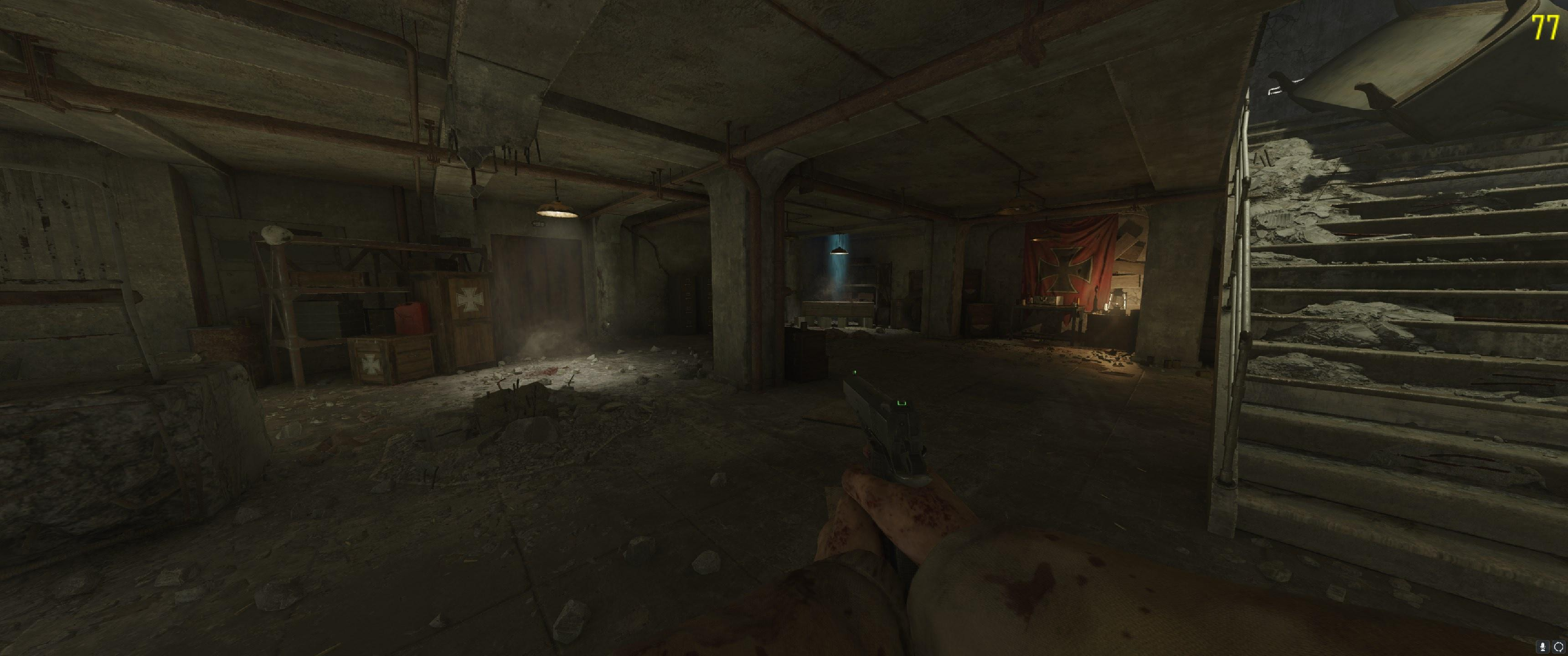
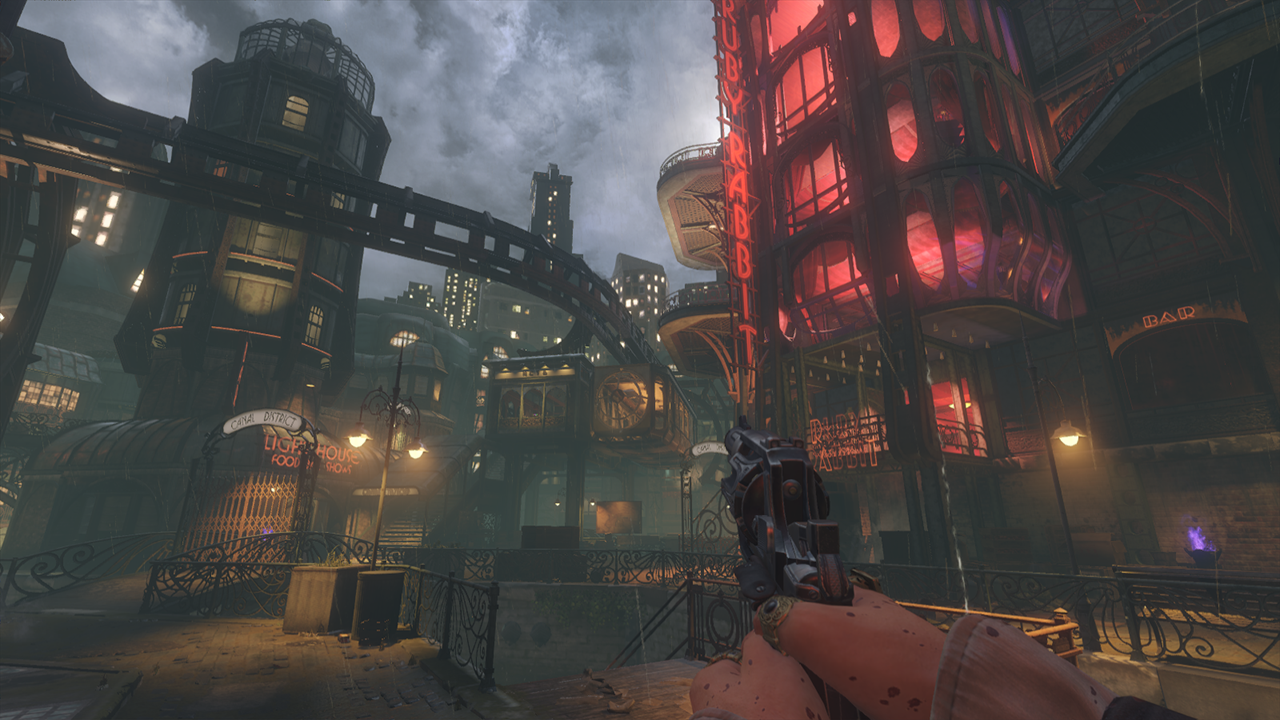
Default Underlays: Click any preset underlay to set it as the background.
Upload: Upload a custom image to use as your HUD underlay background.
Middle Mouse Drag: Pan around the canvas to see different parts of your layout.
Scroll Wheel + Ctrl: Zoom in and out. The view will zoom toward your mouse position.
Reset View: Center the canvas and reset zoom to the default level.
Hidden: Toggle to hide elements from the Lua code output without deleting them.
Locked: Lock elements to prevent accidental movement and resizing.
Name: Set a custom name for each element.
Position & Size: Set precise X, Y, width, and height values.
Color: Choose RGB color values for element backgrounds.
Rotation: Rotate elements for advanced layouts.
Save: Save your HUD layout to a JSON file for later editing.
Load: Open a previously saved HUD layout.
Import PSD: Import a Photoshop file to use as a reference or starting point.
View Code: Open the Lua code modal to see the generated code for all elements.
Copy All: Copy all generated Lua code to your clipboard for use in your mod.
• Use the drag handles on element corners and edges to resize elements.
• Click anywhere on the canvas to deselect the current element.
• Hold Shift while dragging to snap to a grid.